Introduction to Data Migration
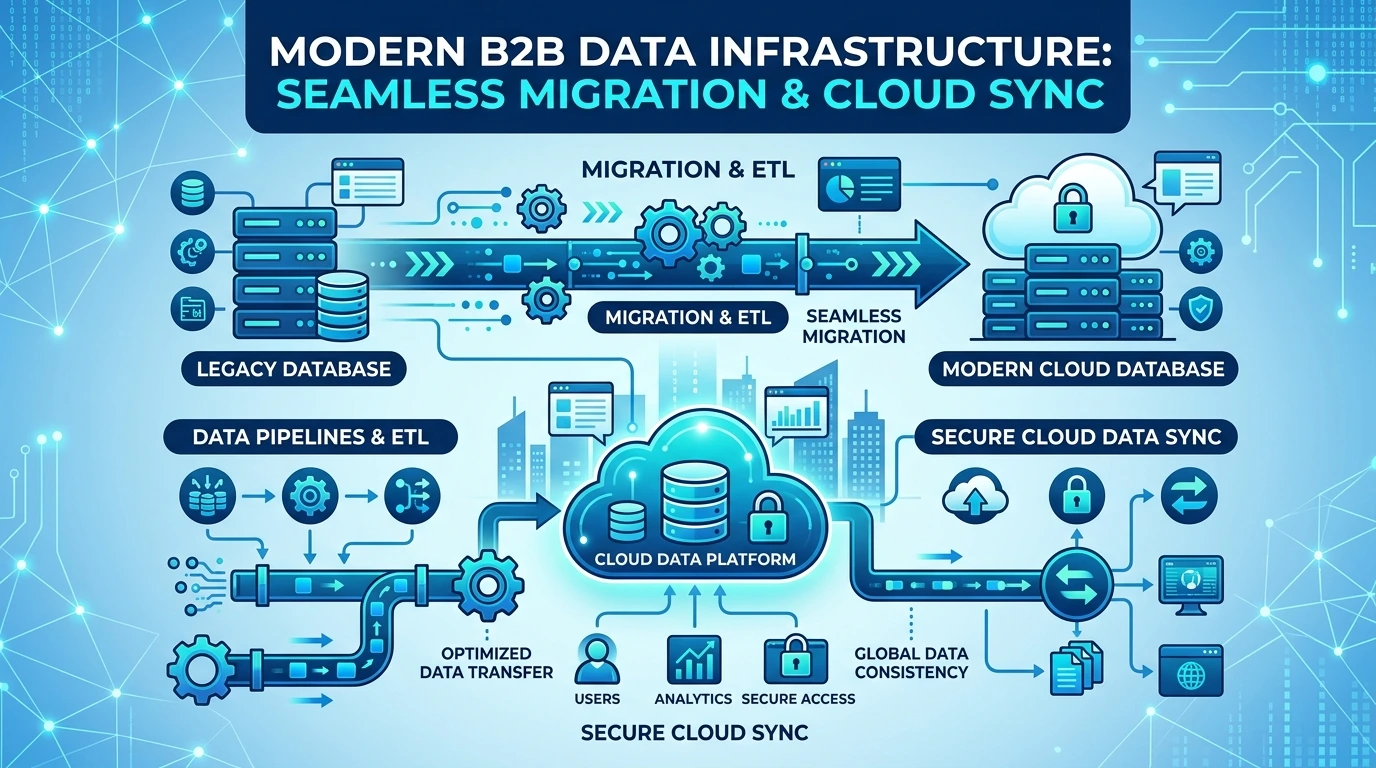
Upgrading to TallyPrime or migrating from legacy systems like Tally.ERP 9, Busy, or spreadsheet-based ledgers is a milestone for any business. However, improper data migration can result in mismatched ledger balances, broken voucher links, or missing GST details.
This guide outlines proven migration procedures to ensure a 100% accurate data transition.
Pre-Migration Checklist
Before starting any migration operation, ensure you perform the following pre-migration health checks:
- Take a Full Backup: Copy the entire data folder (containing
Company.900or numerical data folders) to an external location. - Verify Data Integrity: Run
Tally.ERP 9rewrite/repair mode (Ctrl + Alt + R) to clean any corrupted indices. - Reconcile Closing Balances: Take snapshots of the Trial Balance, Balance Sheet, and Outstanding Statements for verification post-migration.
Migrating Data from Tally.ERP 9 to TallyPrime
Migrating from Tally.ERP 9 to TallyPrime is straightforward thanks to built-in migration tools:
1. Select the Data Directory
- Launch TallyPrime.
- Specify the path where your existing Tally.ERP 9 data is located.
- TallyPrime will auto-detect company data formatted in legacy versions and tag them with Migration Required.
2. Execute Migration
- Select the company and press Migrate.
- TallyPrime creates a backup of the original data automatically and upgrades the data structure to the modern TallyPrime database engine.
Migrating Data from Excel or Other Accounting Software
If you are transitioning from Excel spreadsheets or alternative software (e.g. Busy, Marg, Quickbooks):
- Master Import: Import chart of accounts, party ledgers, and stock item masters using TallyPrime’s native Excel Import capability.
- Opening Balances: Verify and input opening balances for bank, cash, inventory, and party accounts as of the migration date.
- TDL Data Bridges: For complex multi-year transaction data, custom TDL (Tally Definition Language) data bridges can be utilized to automate transaction mapping.
Post-Migration Verification Steps
[!IMPORTANT] Never begin posting active daily transactions in the migrated company file until post-migration balance verification passes.
- Compare Trial Balance: Match the opening Trial Balance in TallyPrime against your previous system’s closing balance.
- Verify GST Master Setup: Check that GSTIN numbers, HSN codes, and tax rates migrated cleanly.
- Test Sample Reports: Generate Sales Registers, Purchase Registers, and Stock Summary reports for sample periods.
Professional Migration Services
If your business has large multi-gigabyte databases, customized TDL reports, or complex inventory matrices, professional assistance minimizes operational downtime. Contact LedgerLink Support for certified TallyPrime data migration assistance.